Your trading desk, on your desktop.
Charts, the live round, order flow and your trades, in modules you arrange yourself. Sign in once and it opens straight to your charts. Included with Pro.

Version 1.0.13 · Windows 10 and 11 · macOS 12 or later
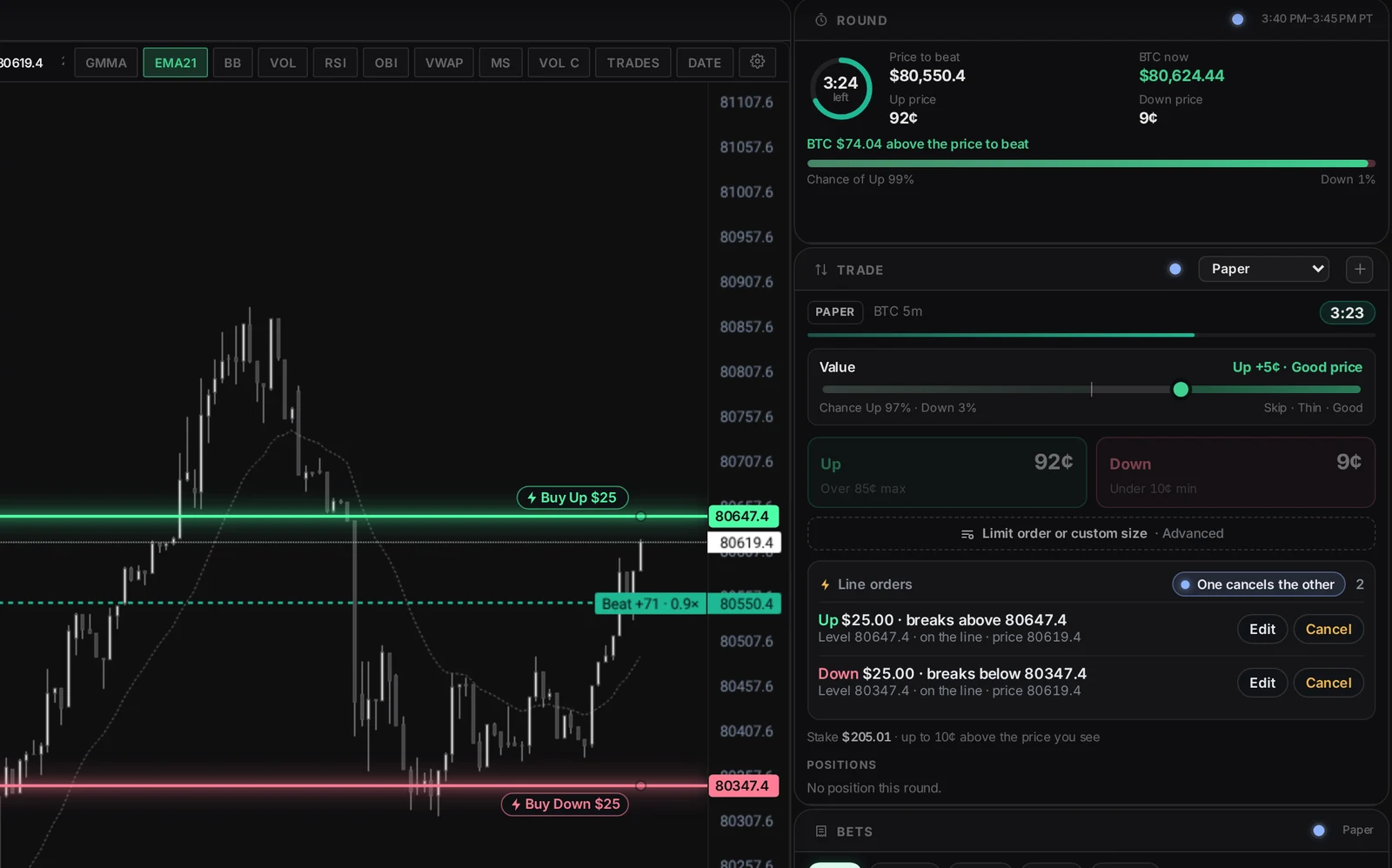
Draw the line. It buys the break.
Draw a level on any chart, pick Up or Down and your amount, and the order buys the moment price breaks through.
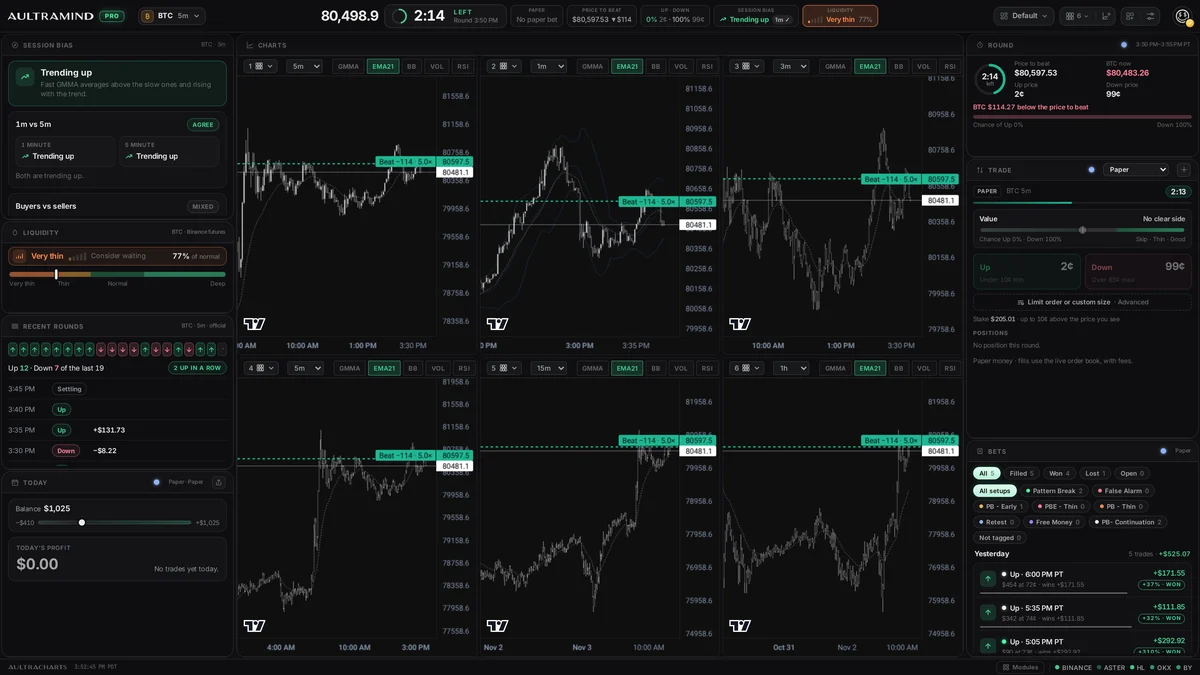
Six charts, one window.
Choose from over 20 chart layouts, mix time frames, and drag the edges to size every chart. Crosshair, time, timeframe and drawings can follow across all of them.
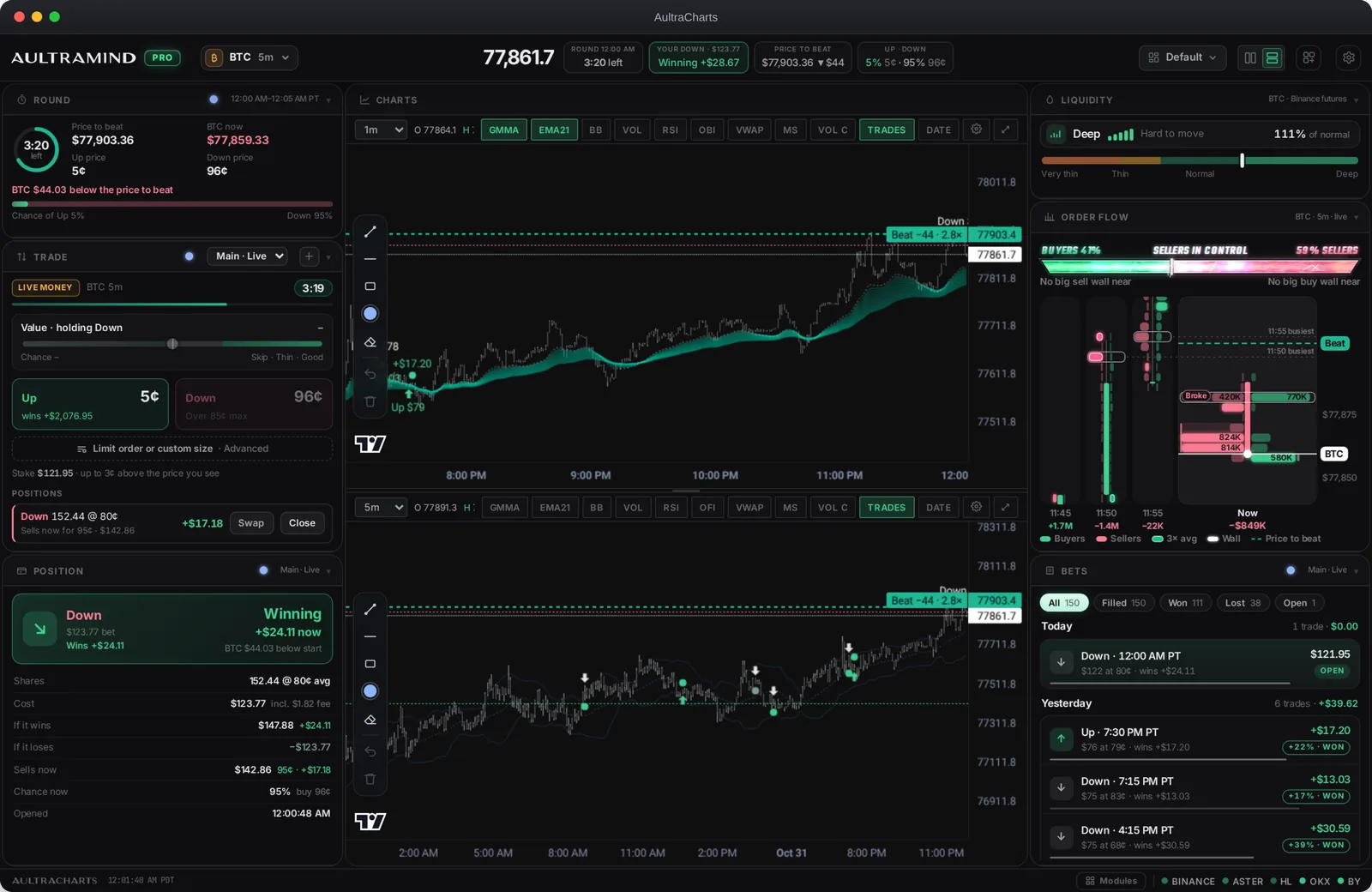
Everything you trade with, in one window.
Modules and layouts
Up to six charts plus Round, Trade, Position, Order Flow, Liquidity, Bets, Big trades and Leaderboard. Resize anything and save your layouts.
Trade from the desk
One-click Up and Down with your saved limits, linked Trade modules per account, hotkeys, and Advanced order for limit orders and exact sizes.
Line orders
Draw a level and the order buys the moment price breaks it. One cancels the other keeps you to one fill.
Order flow
Order-flow candles, a buyers vs. sellers bar and the last-minute average line, beside the price to beat.
Big trades
Large Polymarket trades as they land, with whale pop-ups on the chart and tiers from fish to whale.
Pro charting
GMMA, EMA, VWAP, RSI, volume candles, market structure and drawing tools, with your trades and setup tags on the candles.
Sounds and alerts
Trade sounds, win celebrations and price alerts, with settings that follow your login.
Watch and read
News, YouTube and a full Browser with tabs, right beside your charts. One window for the whole session.
Share your results
P&L cards for a day, a week or a single bet, in dollars or % only, plus your public profile.
Pick your computer.
Windows
Mac · Apple silicon
Mac · Intel
Ready in a minute.
Windows
- Open Aultramind-Setup from your Downloads.
- If Windows says Windows protected your PC, click More info, then Run anyway.
- It installs in a few seconds and adds Aultramind to your desktop and Start menu.
- Sign in with your Aultramind account.
Mac
- Open the download, then drag Aultramind into your Applications folder.
- Open Aultramind. If your Mac says it can't check the app, click Done.
- Open System Settings, then Privacy & Security, scroll down and click Open Anyway.
- Sign in with your Aultramind account. You only need to do this once.
Questions, answered.
Do I need Pro?
Yes. AultraCharts is included with Pro. If you sign in on the Free plan, the app shows how to upgrade.
How does it update?
The charts update by themselves, so new features show up the next time you open the app. If the app itself ever needs a new version, it tells you and links you back here.
Why does my computer show a warning?
The Aultramind app isn't registered with Apple or Microsoft yet, so they check with you the first time you open it. After that it opens normally. The app only connects to poly.aultramind.com.
Which Mac do I have?
Click the Apple menu and choose About This Mac. If it says Chip: Apple M1, M2, M3 or M4, use Apple silicon. If it says Processor: Intel, use Intel.
How do I remove it?
On Windows, open Settings, then Apps, find Aultramind and click Uninstall. On a Mac, drag Aultramind from Applications to the Bin.